

The team dashboard
Reach it from Team Dashboard at the top of the left rail, or at karani.co/user/payment-group.
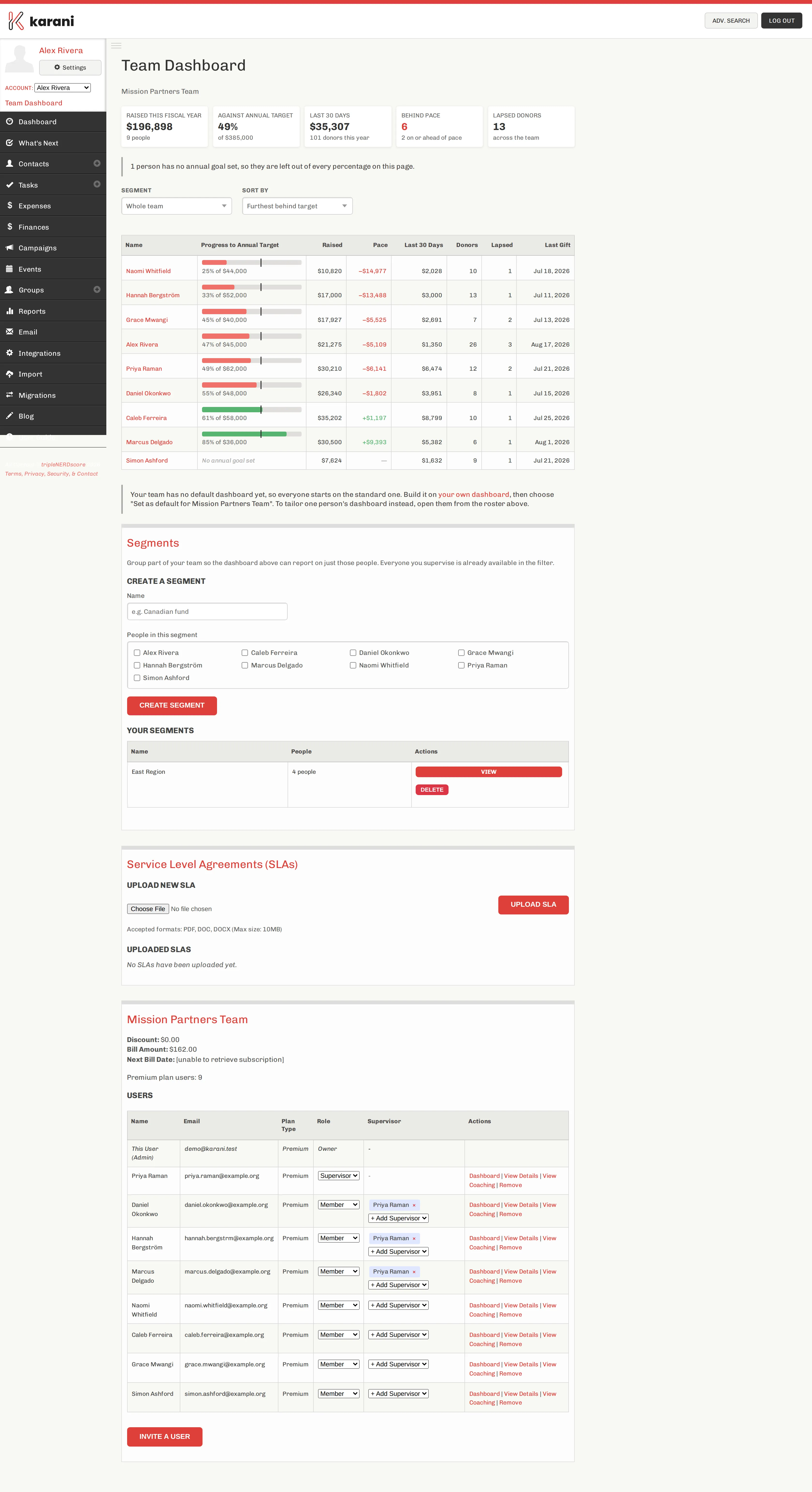
The headline numbers
Section titled “The headline numbers”| Figure | Means |
|---|---|
| Raised this fiscal year | The team’s total, with how many people it covers |
| Against annual target | That total as a share of the summed goals |
| Last 30 days | Recent giving, with the donor count for the year |
| Behind pace | How many people are behind an even pace, and how many are on or ahead |
| Lapsed donors | Lapsed donors across the whole team |
The roster
Section titled “The roster”One row per person.
| Column | Means |
|---|---|
| Name | Click through to their detail page |
| Progress to Annual Target | A bar, with the percentage and the goal. The vertical marker is where an even pace would put them today |
| Raised | This fiscal year |
| Pace | Money ahead (green, +) or behind (red, −) an even pace |
| Last 30 Days | Recent giving |
| Donors | Distinct donors this year |
| Lapsed | Lapsed donors |
| Last Gift | When money last arrived |
Reading the pace column
Section titled “Reading the pace column”Pace is the most useful column and the least obvious.
Karani works out how far through the fiscal year you are, applies that to the person’s goal, and compares it to what they’ve actually raised. Someone six months into the year with a $48,000 goal should be at $24,000; at $18,000 they are −$6,000.
It’s a smoothing device, not a verdict. Someone whose giving arrives in two large chunks will read badly for most of the year and be fine. Read pace alongside Last Gift and Last 30 Days before drawing conclusions.
Sorting and segmenting
Section titled “Sorting and segmenting”Sort by reorders the roster — by name, raised, percentage of goal, recent giving, or lapsed count.
Segment narrows the whole page — including the headline numbers — to part of the team. Anyone you supervise is already available as a filter, and you can save your own. See Segments.
The rest of the page
Section titled “The rest of the page”Below the roster:
- Segments — create and manage them
- Service Level Agreements — upload and store team agreements
- The team panel — billing summary, the full user list with roles and supervisors, and Invite a User
Who sees this page
Section titled “Who sees this page”Leaders see the whole team. Supervisors see the same page scoped to their assigned members — including the headline numbers, which are recomputed for their people only.
Members don’t see the team dashboard. They see their own team view instead.