

Gift receipts
Karani can produce a receipt for any gift, either as an email or as a PDF.
Setting up your receipt
Section titled “Setting up your receipt”Do this once, before you send any. Go to Settings → Gift Receipt, or karani.co/account/gift-receipt-settings.
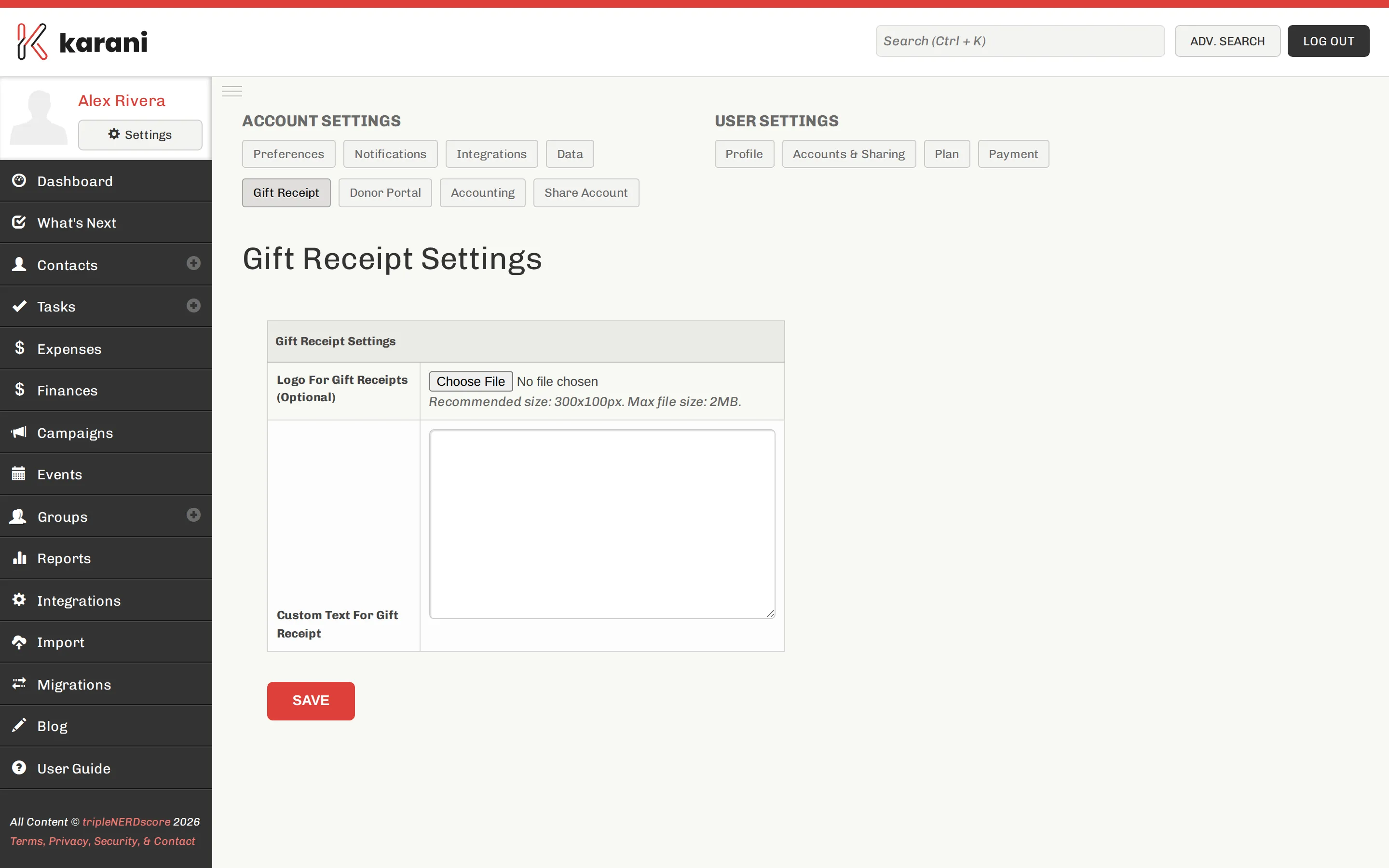
- Logo — upload your organisation’s logo. It appears at the top of every receipt.
- Custom text — the standard wording that appears on every receipt. This is where any tax or acknowledgement language your organisation requires goes.
Sending a receipt
Section titled “Sending a receipt”-
Open the gift — from the Gifts panel on the contact profile, or from the Gifts Report.
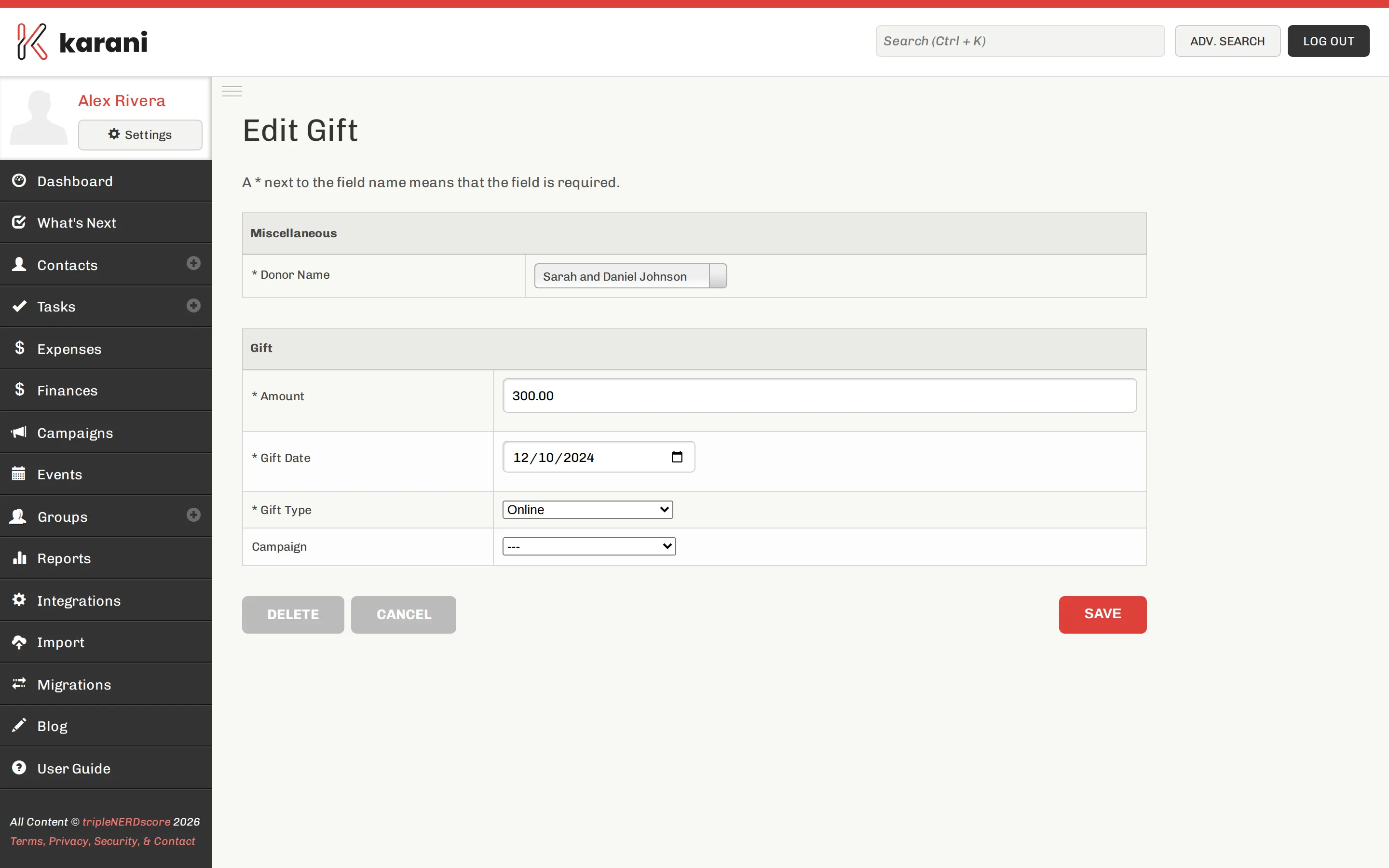
The gift page, with the receipt actions. -
Choose Email receipt to send it to the donor, or PDF to download it for printing or attaching yourself.
Emailed receipts go to the contact’s first email address. If they don’t have one, use the PDF.
Receipts and thank-yous
Section titled “Receipts and thank-yous”A receipt is a document, not an interaction. Sending one doesn’t clear the donor from Unthanked Donors.
If you treat the receipt as your thank you, log a Thank You interaction as well — see Thanking donors.
Year-end statements
Section titled “Year-end statements”For a summary of everything a donor gave over a year, rather than a receipt per gift, use the donor portal’s giving statements. Donors can also pull their own statement from the portal at any time, which removes a lot of January email.