

The Tasks page
The Tasks page is everything you’ve told yourself to do, in one list.
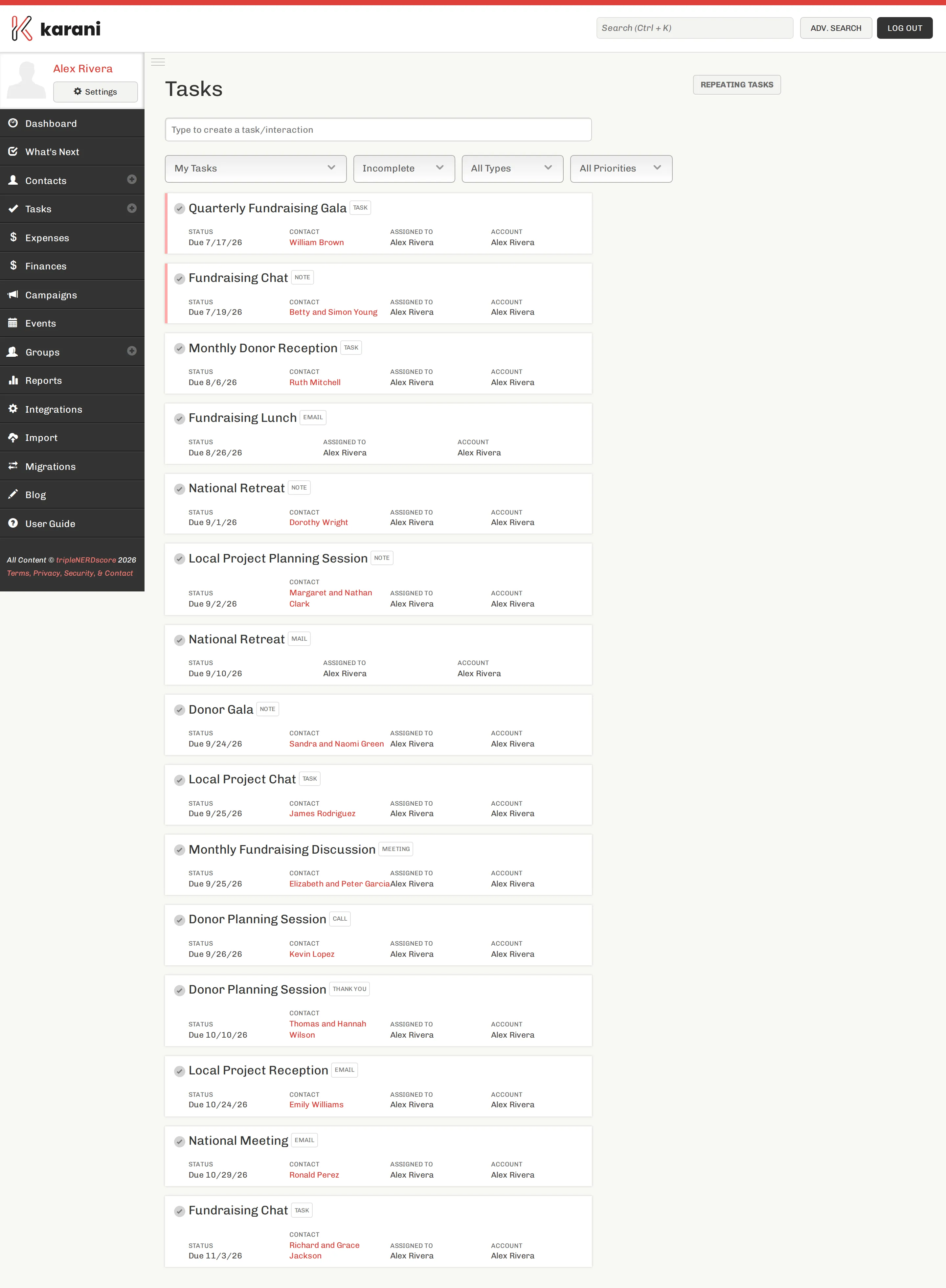
Reading the list
Section titled “Reading the list”Each row shows the task title, the contact it relates to, its type, and its due date. Overdue tasks are called out so they don’t quietly slide.
Click the check to complete a task. It converts into an interaction on that contact’s record — see Adding a task.
Click the title to open the task and edit it.
Ordering
Section titled “Ordering”Tasks are ordered by due date, with priority breaking ties. A Highest-priority task due Friday sorts above a Low-priority one due the same day.
Working through it
Section titled “Working through it”Two patterns work well:
Clear the overdue. Anything past its date is either done (tick it), no longer relevant (delete it), or needs a new date (change it). A task list you trust is one where overdue actually means overdue.
Batch by type. Do all the calls at once, then all the emails. Switching channels is where the time goes.
Tasks on the dashboard
Section titled “Tasks on the dashboard”Your dashboard shows the next few tasks due. It’s the same data, trimmed — good for a quick glance, but the Tasks page is where you work.
Rescheduling
Section titled “Rescheduling”Open the task and change its due date. There’s no penalty for moving a task; a date you’ve consciously pushed is more useful than one you’re ignoring.
If you’re rescheduling the same task every month, it probably wants to be a repeating task.
Deleting a task
Section titled “Deleting a task”Open it and delete. Deleting a task removes it entirely — unlike completing it, nothing lands in the contact’s interaction history. Use delete for tasks that turned out not to be needed, and complete for ones you actually did.