

Adding a pledge
Where to add one
Section titled “Where to add one”Three routes, all the same form:
- From a contact’s profile, the + on the Pledges panel — best, because the contact is already filled in.
- From the Finances page, the + on the Pledges panel.
- On the Add New Contact form, in the Add pledge (optional) panel.
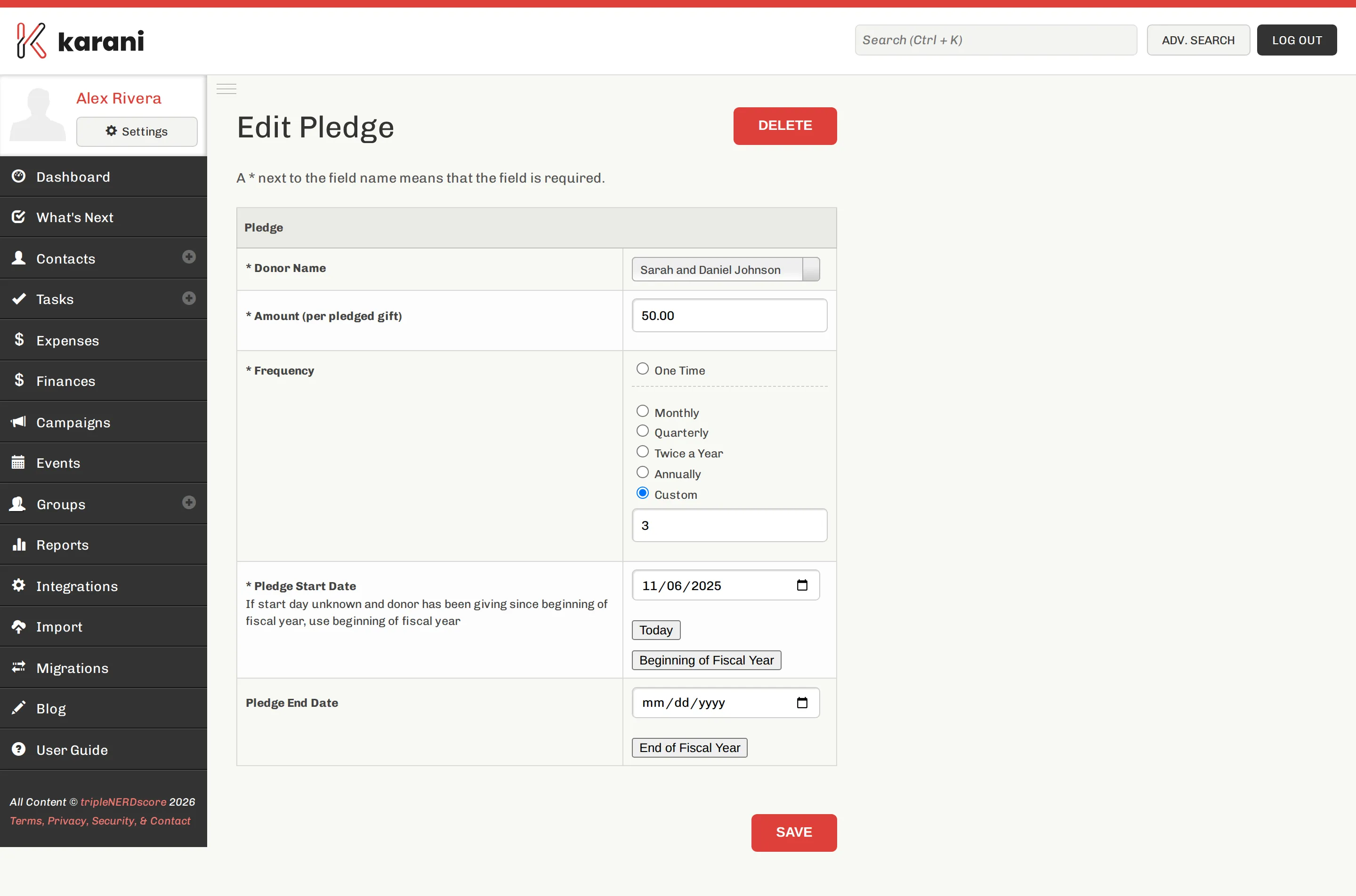
The fields
Section titled “The fields”-
Donor — who made the pledge. Pre-filled if you started from their profile.
-
Is it a one-time pledge? Choose Yes for a gift someone will give once. See below.
-
Amount — the amount per pledged gift, not the annual total. No currency symbol needed.
Someone pledging $50 a month has an amount of
50and a frequency of Monthly — not600. -
Frequency — Monthly, Quarterly, Twice a Year, Annually, or Custom.
-
Pledge start date — when the pledge begins.
-
Pledge end date — leave blank for an open-ended pledge.
Click Save New Pledge, or Save and Add Another if you’re working through a stack.
The start date trap
Section titled “The start date trap”This is the single most common source of “why are my totals wrong?”
Karani counts a pledge toward a fiscal year from its start date forward. If a donor has been giving $50 a month for six years and you enter the pledge today with today’s date, Karani counts only the months remaining in this fiscal year — so your pledged total reads low, and the donor may look behind when they aren’t.
One-time pledges
Section titled “One-time pledges”A one-time pledge is a gift someone has said they’ll give once — a year-end gift, a project contribution, a bonus.
Record it as a pledge rather than waiting for the gift, so that:
- Your pledged total reflects what you’ve actually secured.
- Percent funded is honest about where you stand.
- The gift, when it arrives, has something to be matched against.
One-time pledges appear as their own line on the Finances page Pledges table, separate from repeating pledges.
Editing and cancelling
Section titled “Editing and cancelling”Click the pledge on the contact’s profile to open it.
- Edit to change the amount, frequency, or dates. Use this when a donor increases or decreases their giving.
- Cancel to record that the pledge has ended, with an optional reason. Cancelling keeps the history — the pledge existed and counted for the period it ran — rather than pretending it never happened.
Importing pledges
Section titled “Importing pledges”Bringing a lot in at once? See Importing pledges. Import contacts first so pledges have someone to attach to.