

Advanced search
Advanced search is Karani’s query builder. Anything you can describe in terms of contact fields, you can find.
Get to it with Adv. Search in the top bar, from the Build a new search link on your dashboard, or at karani.co/search.
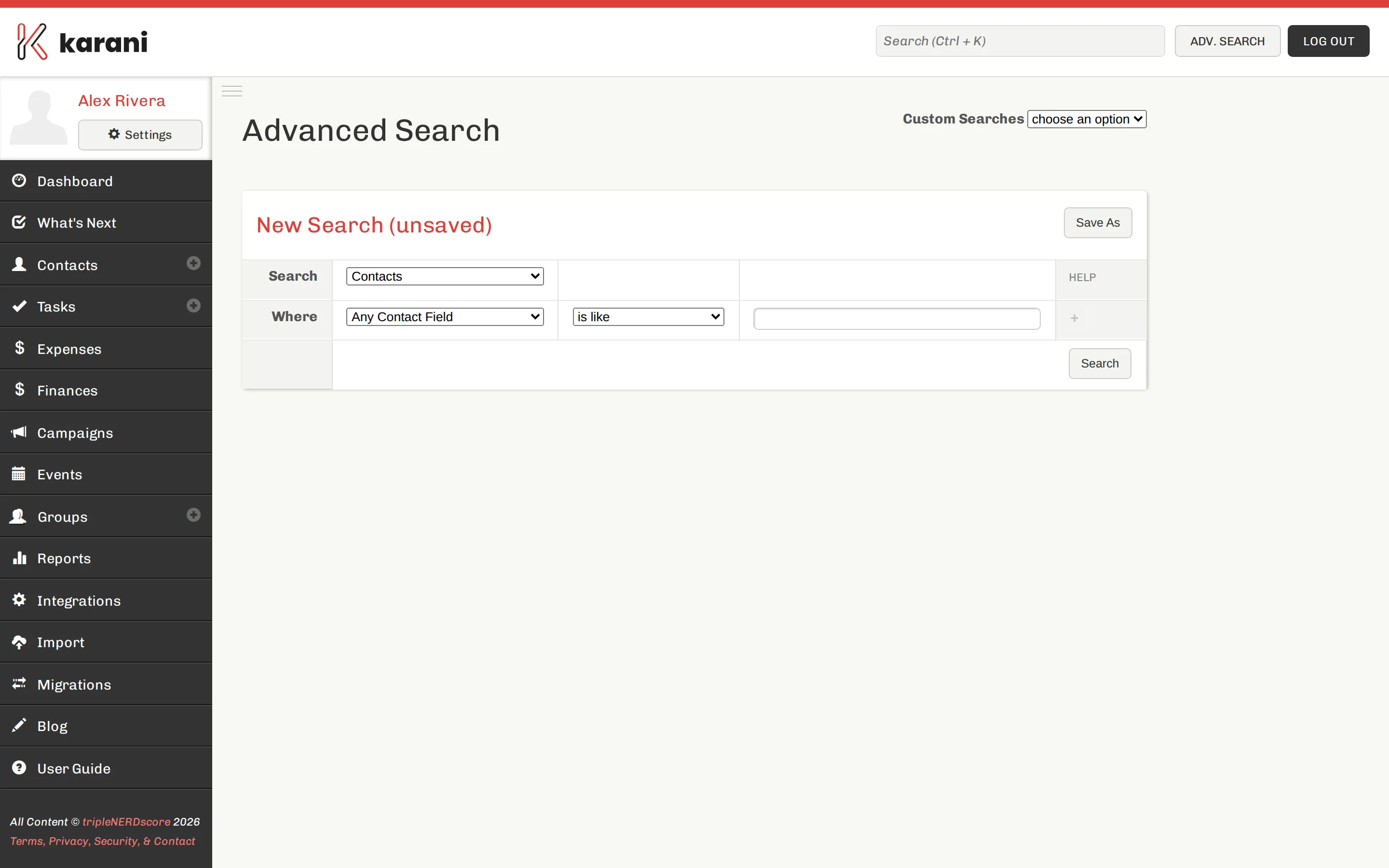
How it works
Section titled “How it works”-
Search — choose what kind of record you’re looking for. Contacts is the default.
-
Where — build a criterion out of three parts:
- the field (Any Contact Field, Contact State, Contact Tag, …)
- the operator (is like, is, is not, is greater than, …)
- the value
When the field has a fixed set of options — a state, a group, a tag — the value box becomes a dropdown.
-
Add more criteria with the + at the end of the row. Criteria combine with AND: a contact has to match all of them.
-
Click Search.
A worked example
Section titled “A worked example”Say you want alumni who live in Colorado.
-
Change Any Contact Field to Contact State.
-
Change the value dropdown to Colorado.
-
Click + to add a second row.
-
Set the new row’s field to Contact Group and its value to Alumni. (This assumes you already have a group called Alumni — see Creating a group.)
-
Click Search.
You get every contact matching both conditions, in a list you can act on.
What you can search on
Section titled “What you can search on”The field dropdown includes, among others:
- Any Contact Field — a catch-all text search across the record
- Name fields, Greeting, Notes
- Contact Status, Contact Tag, Contact Group
- Address fields — street, City, State, postal code, Country
- Phone and Email
- Birthday and Anniversary
- Flags like anonymous and organisation
- Giving-related fields, for questions like “gave more than $500 this year”
Saving the search
Section titled “Saving the search”Click Save As in the top right and give it a name. Saved searches appear:
- in the Custom Searches dropdown at the top of this page,
- under My Searches on the Reports page,
- in the Reports panel on your dashboard.
A saved search stores the criteria, not the results — so it’s always current when you open it. See Saved searches for renaming, editing, and deleting.
What to do with the results
Section titled “What to do with the results”From a result list you can:
- Click any contact to open their profile.
- Tick contacts and use With Selected… to add them to a group, add tags, or change their status in bulk.
- Export the results — see Exporting your data.