

Bringing your data in
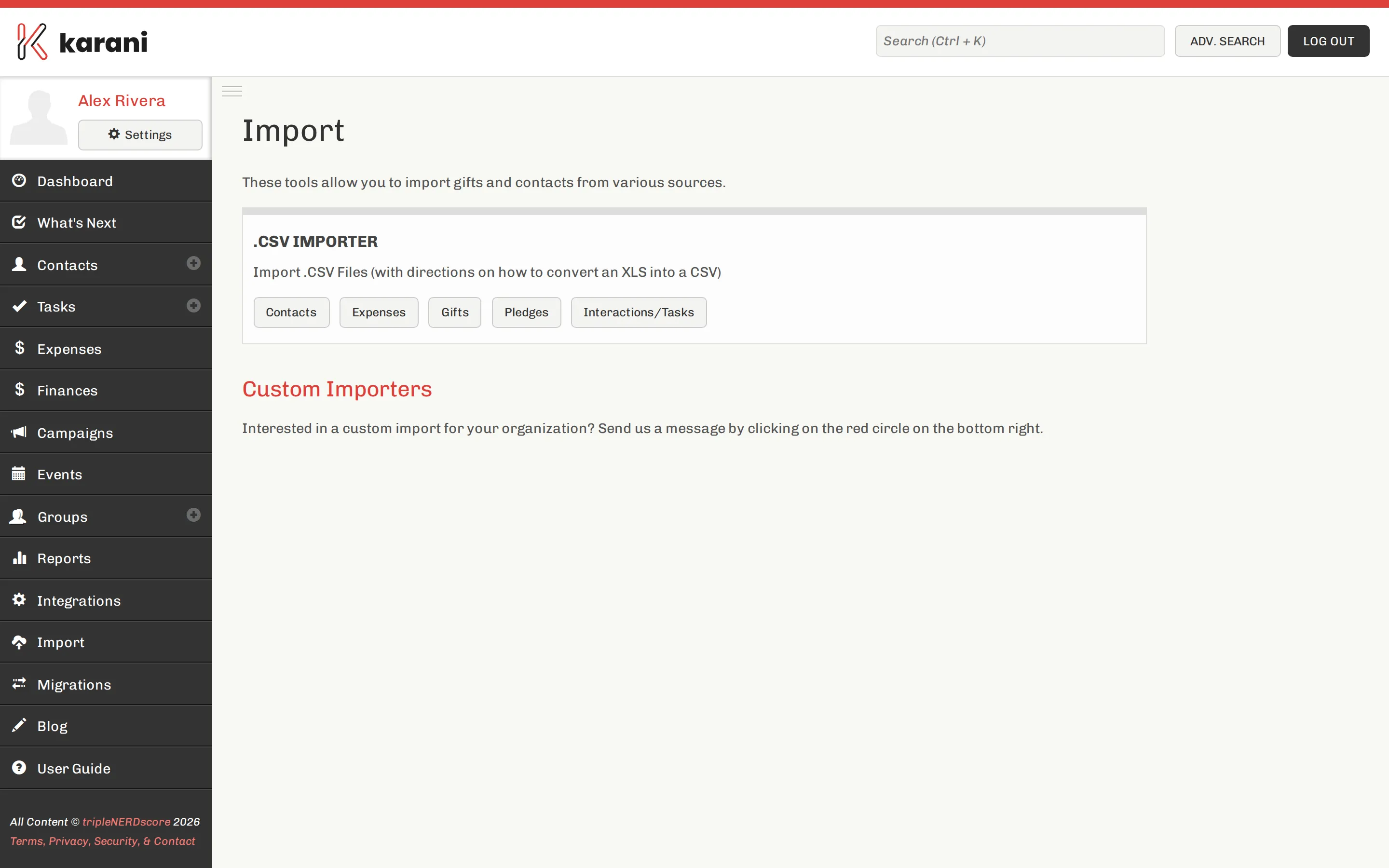
There are four ways to get existing data into Karani. Pick the one that matches where your data lives now.
Which route?
Section titled “Which route?”| Your data is in… | Use |
|---|---|
| A spreadsheet, or an export from anywhere | CSV importers |
| Another CRM Karani supports directly | Migrations |
| A service Karani integrates with (Mailchimp, QuickBooks, HubSpot, Blackbaud, Virtuous, Aplos, Zeffy) | Integrations |
| Your head | Add contacts by hand |
Most people use more than one. A common pattern is: bulk-import contacts and giving history from a spreadsheet, connect Mailchimp for the newsletter list, and then add new people by hand as you meet them.
The order to import in
Section titled “The order to import in”This matters. Gifts, pledges, and interactions all attach to a contact, so the contact has to exist first.
- Contacts — Importing contacts
- Pledges — Importing pledges
- Gifts — Importing gifts
- Interactions and tasks — Importing interactions
The single most important field
Section titled “The single most important field”If you take one thing from this page: set an organisation ID on every contact.
Your organisation’s donation system almost certainly assigns each donor a unique ID. When you import gifts later, Karani matches them to contacts by that ID — not by name. Names are ambiguous (two Bob Smiths, a married surname change, a typo); IDs are not.
If your organisation doesn’t provide IDs, use each contact’s email address as their organisation ID. Anything stable and unique works.
Before you import anything
Section titled “Before you import anything”- Get contacts right first, then check the result. Import your contacts, open the contacts list, and see whether it looks like your actual list before importing anything else.
- Imports can be reviewed. Every import is logged with a count of what changed. See Reviewing an import.
- Start small if you’re nervous. Cut your CSV down to ten rows, import those, check they look right, then import the rest.