

The contact profile
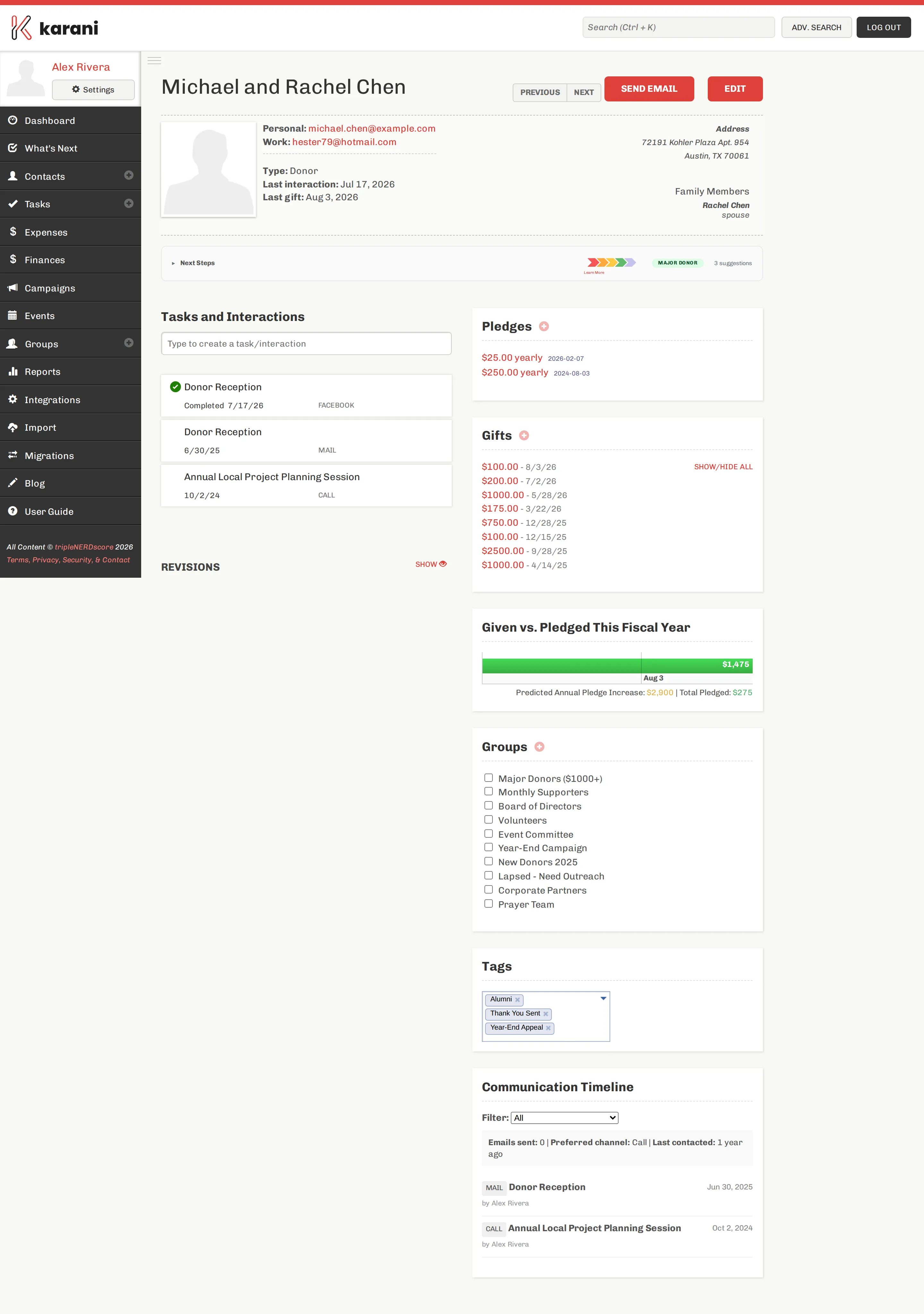
The contact profile is the page you’ll spend the most time on. It’s designed to answer one question in a glance before you pick up the phone: where are we with this person?
The header
Section titled “The header”The contact’s name, and to the right:
- Previous / Next — step through the contacts list without going back to it.
- Send Email — open the compose window with this contact already in the To field.
- Edit — open the edit form.
Underneath, the summary block:
- Email addresses, labelled by type (Personal, Work).
- Type — their status.
- Last interaction and Last gift — the two dates that tell you most.
- Address, on the right.
- Family Members, with each person’s relationship.
Next Steps
Section titled “Next Steps”The collapsible bar under the header is Karani’s read on the relationship.
- The coloured chevrons are the 3D rating — a summary of recency, generosity, and consistency.
- The badge (for example, Major Donor) is a classification Karani has inferred from giving behaviour.
- N suggestions expands to show concrete recommended next actions.
Click Next Steps to expand it. This is the same intelligence that powers the What’s Next report, narrowed to one person.
Tasks and Interactions
Section titled “Tasks and Interactions”The left column is the relationship history.
The box at the top — Type to create a task/interaction — is the fastest way to log something. Start typing and Karani offers to create either a task (something you’ll do) or an interaction (something you did). See Adding a task and Logging an interaction.
Below it, the list. A green check means a completed task; anything with a date in the future is still outstanding. Each entry shows its type — CALL, MAIL, EMAIL, FACEBOOK, and so on.
Revisions
Section titled “Revisions”At the bottom, Revisions → Show reveals an audit trail of changes to this contact — what changed, when, and who did it. Useful on a shared account when you want to know why a field looks different from how you left it.
Pledges
Section titled “Pledges”What this contact has committed to give, with the amount, frequency, and start date. The + adds a new one.
Click a pledge to edit it.
Actual money received, newest first. Show/Hide All expands past the most recent handful.
Click any gift to open it — from there you can edit it, email a receipt, or generate a PDF. See Gift receipts.
Given vs. Pledged This Fiscal Year
Section titled “Given vs. Pledged This Fiscal Year”The bar compares what this contact has actually given this fiscal year against what they pledged for the same period. Underneath:
- Predicted Annual Pledge Increase — what Karani projects this contact’s pledge is worth over a full year.
- Total Pledged — the sum of their active pledges for the period.
Groups
Section titled “Groups”Every group in your account, with a tick next to the ones this contact belongs to. Tick or untick to add or remove them — it saves immediately, no separate save button.
Free-form tags. Type to add, click the × to remove.
Communication Timeline
Section titled “Communication Timeline”A chronological record of contact across every channel, with a Filter dropdown to narrow by type.
The summary line at the top gives you:
- Emails sent — how many messages you’ve sent through Karani.
- Preferred channel — the channel this contact responds to most.
- Last contacted — how long it’s been.