

Turning on the portal
Go to Settings → Donor Portal, or karani.co/account/donor-portal.
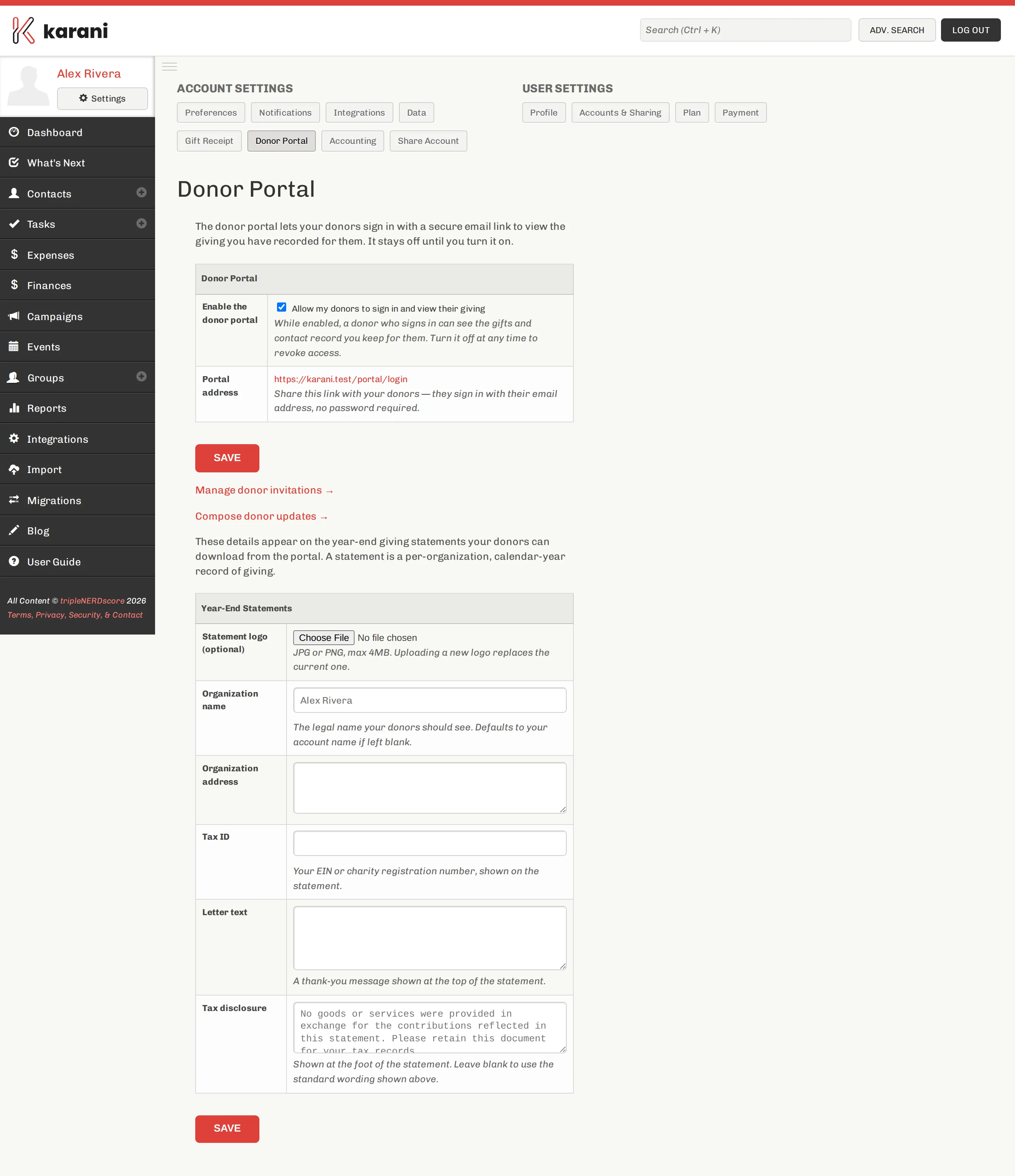
Enabling it
Section titled “Enabling it”Tick Allow my donors to sign in and view their giving, then Save.
The portal address appears — a link like
https://karani.co/portal/login. Share it with donors; they sign in with their
email address, no password required.
Turning the checkbox off again revokes access immediately for everyone.
Year-end statements
Section titled “Year-end statements”The second half of the page configures the giving statement donors can download themselves. A statement is a per-organisation, calendar-year record of giving.
| Field | Notes |
|---|---|
| Statement logo | Optional. JPG or PNG, max 4MB. Uploading a new one replaces the old. |
| Organization name | The legal name donors should see. Defaults to your account name if blank. |
| Organization address | Shown on the statement. |
| Tax ID | Your EIN or charity registration number. |
| Letter text | A thank-you message at the top of the statement. |
| Tax disclosure | Shown at the foot. Leave blank to use Karani’s standard wording. |
Click Save.
The default tax disclosure
Section titled “The default tax disclosure”If you leave the disclosure blank, Karani uses:
No goods or services were provided in exchange for the contributions reflected in this statement. Please retain this document for your tax records.
Letter text worth writing
Section titled “Letter text worth writing”The letter text appears on every statement, so it’s worth more than one line. Two or three sentences of what their giving made possible this year turns a tax document into a thank-you.
Next steps
Section titled “Next steps”Two links at the bottom of the settings page:
- Manage donor invitations → — Inviting donors
- Compose donor updates → — Posting updates