

Adding a contact
Getting to the form
Section titled “Getting to the form”Either:
- Click the + next to Contacts in the left navigation, or
- Go to the contacts list and click the + beside the heading.
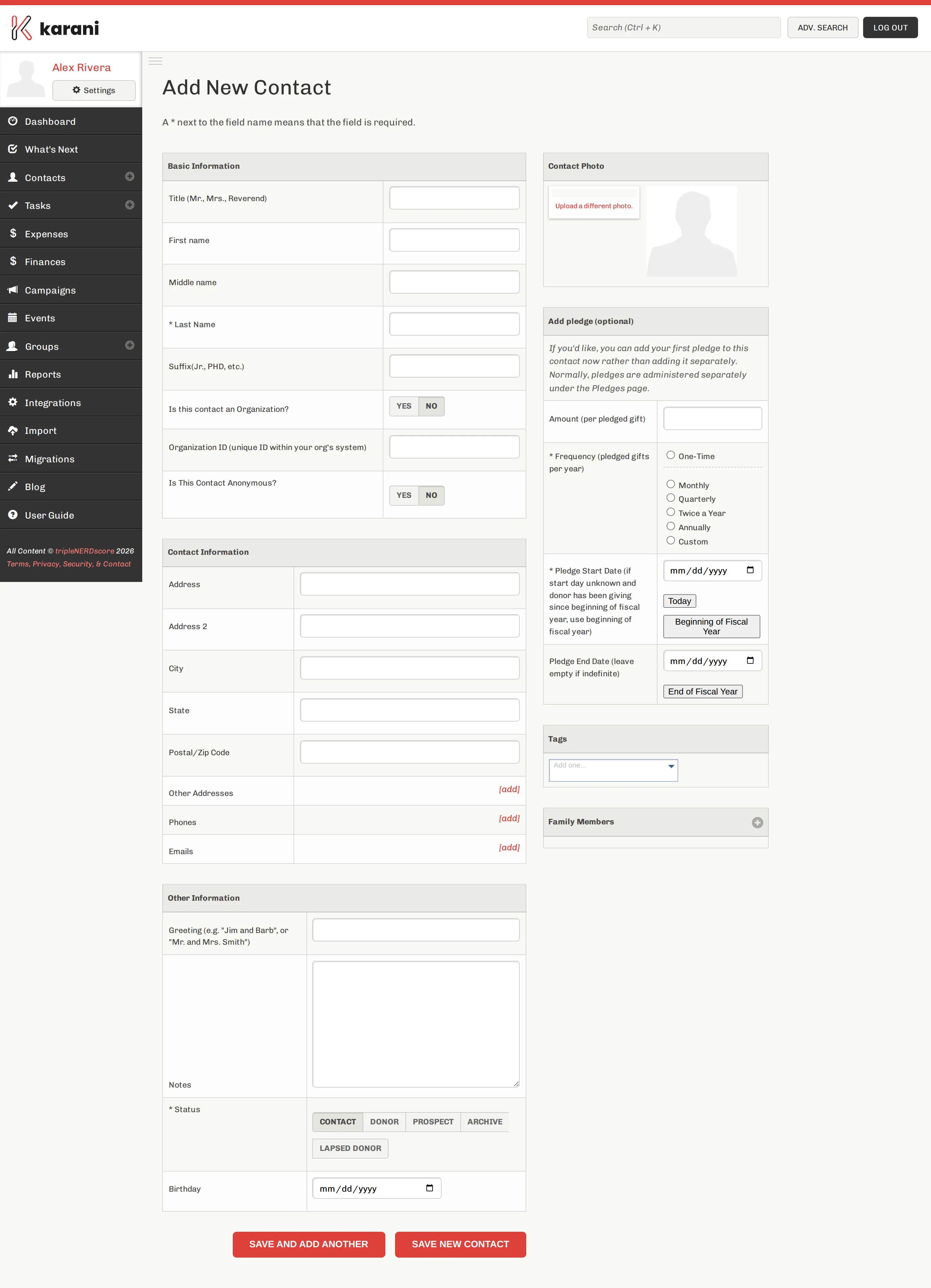
A * next to a field name means it’s required. There are only two.
Basic Information
Section titled “Basic Information”| Field | Notes |
|---|---|
| Title | Mr., Mrs., Reverend, Dr. — however they’d want to be addressed formally. |
| First name | |
| Middle name | Rarely used. Fine to skip. |
| Last Name * | Required, unless the contact is anonymous. For an organisation, put the whole organisation name here — see below. |
| Suffix | Jr., PhD, III. |
| Is this contact an Organization? | Switch to Yes for a church, business, or foundation. |
| Organization ID | The unique ID your organisation’s donation system uses for this donor. |
| Is This Contact Anonymous? | For donors who’ve asked not to be named. Anonymous contacts don’t need a last name. |
Contact Information
Section titled “Contact Information”Address, Address 2, City, State, and Postal/Zip Code are the primary address — the one used for mailing labels and mail merge and for placing the contact on the contact map.
Below those, three [add] links let a contact have more than one of each:
- Other Addresses — a work address, a winter address.
- Phones — mobile, home, work.
- Emails — personal and work.
See Emails, phones & addresses for how multiple entries behave.
Other Information
Section titled “Other Information”| Field | Notes |
|---|---|
| Greeting | How you’d open a letter — “Jim and Barb”, or “Mr. and Mrs. Smith”. Used by mail merge. |
| Notes | Free text. Anything that doesn’t fit a field. Turn on the rich text editor in Preferences for formatting. |
| Status * | Contact, Donor, Prospect, Archive, or Lapsed Donor. See Contact statuses. |
| Birthday | Feeds the Upcoming Special Days report and optional birthday reminder emails. |
The right-hand column
Section titled “The right-hand column”Contact Photo
Section titled “Contact Photo”Upload a photo. Genuinely useful — it makes the contact list scannable and helps you recognise someone before a meeting.
Add pledge (optional)
Section titled “Add pledge (optional)”A shortcut so you can record a first pledge while you’re already here rather than adding it separately afterwards.
| Field | Notes |
|---|---|
| Amount | The amount per pledged gift, not the annual total. |
| Frequency | One-Time, Monthly, Quarterly, Twice a Year, Annually, or Custom. |
| Pledge Start Date | If you don’t know when they started, use the Beginning of Fiscal Year button. |
| Pledge End Date | Leave empty for an open-ended pledge. |
Type to add tags. You don’t have to create them first — typing a new one creates it.
Family Members
Section titled “Family Members”Click + to add a spouse, child, or parent. See Spouses & family members.
Saving
Section titled “Saving”- Save New Contact — saves and takes you to the new contact’s profile.
- Save and Add Another — saves and gives you a blank form again. Use this when you’re entering a stack of business cards.