

Importing contacts
Import contacts first — everything else attaches to them.
Preparing the file
Section titled “Preparing the file”Useful columns: first name, last name, address, city, state,
postal code, email, phone, and — most importantly — a donor ID or
organisation ID.
If your organisation doesn’t provide IDs, use the email address. See Preparing your CSV.
Running the import
Section titled “Running the import”-
Go to Import in the left navigation and choose Contacts.
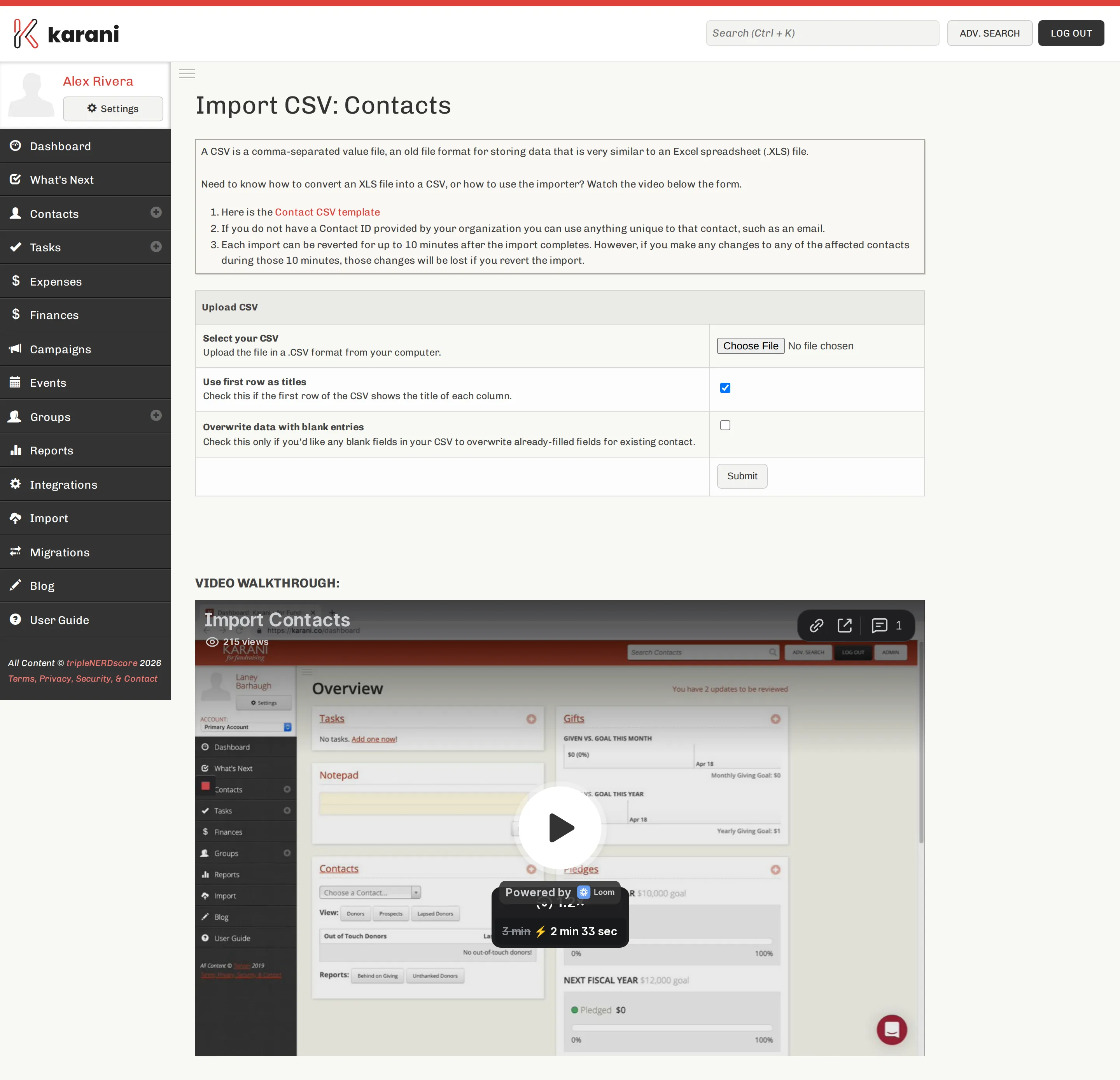
The upload step. The Contact CSV template link is worth using. -
Choose your file.
-
Use first row as titles — leave ticked if your CSV has a header row.
-
Overwrite data with blank entries — leave unticked unless you deliberately want blanks in your CSV to erase existing values.
-
Submit.
-
Map your columns. Karani lists each column from your file with a dropdown of Karani fields beside it. Match them up.
-
Process CSV.
Mapping tips
Section titled “Mapping tips”Donor ID maps to Contact Organization ID. This is the field that makes future imports match rather than duplicate.
You can map several columns to one Karani field. If you map both “Fiscal Year” and “Address Last Modified” to Add to Contact Notes, both end up in the notes, concatenated. Useful for source data with fields Karani has no equivalent for.
Leave columns unmapped if you don’t need them. Nothing is imported that you don’t map.
The fields you can map
Section titled “The fields you can map”See the CSV field reference for the full list. The ones people miss:
| Karani field | Notes |
|---|---|
| Contact Organization ID | The matching key. Map it. |
| Status | Contact, Donor, Prospect, Archive, Lapsed Donor. Otherwise everyone imports with the default. |
| Spouse fields | First name, last name, title, suffix, birthday. |
| Annual Giving Potential | For prospects — feeds Prospective Giving. |
| Birthday / Anniversary | YYYY-MM-DD. Feeds Special Days. |
| Is Organization? / Is Anonymous? | Y or N. |
After the import
Section titled “After the import”- Open the contacts list and check the count and a few records.
- Run Potential Duplicate Contacts.
- Then import pledges and gifts.
Re-importing later
Section titled “Re-importing later”Running the contacts importer again with the same organisation IDs updates those contacts rather than duplicating them. That’s the intended way to keep Karani in step with your organisation’s records — export from them, import into Karani, repeat.