

Exporting your data
Your data is yours, and Karani will hand all of it over in CSV whenever you want.
Downloading everything
Section titled “Downloading everything”-
Go to Settings → Data, or karani.co/account/data.
-
Click Download My Data.
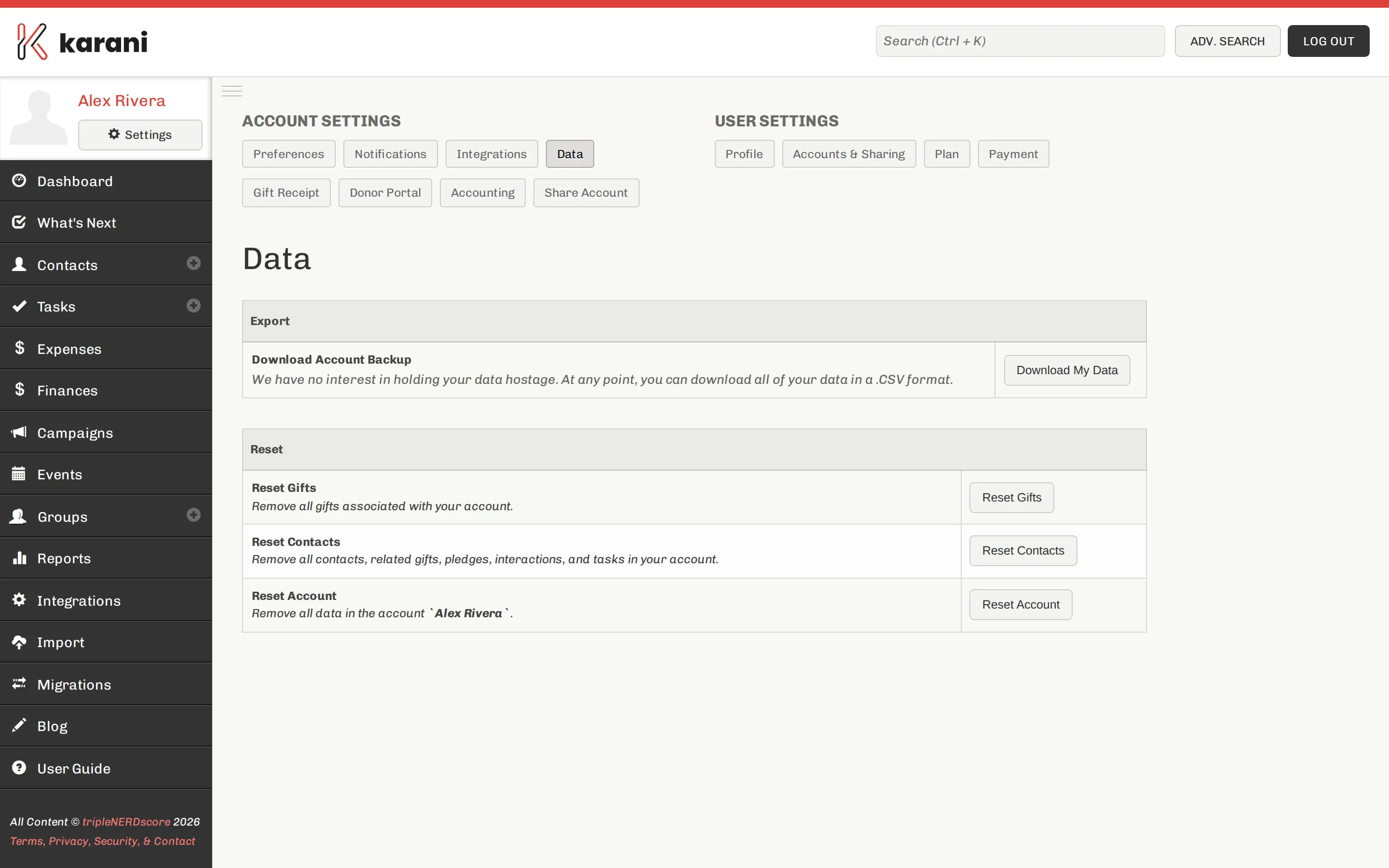
The download includes contacts, gifts, pledges, tasks, interactions, groups, and your configuration — goals, fiscal year, thresholds — as CSV.
Per-report exports
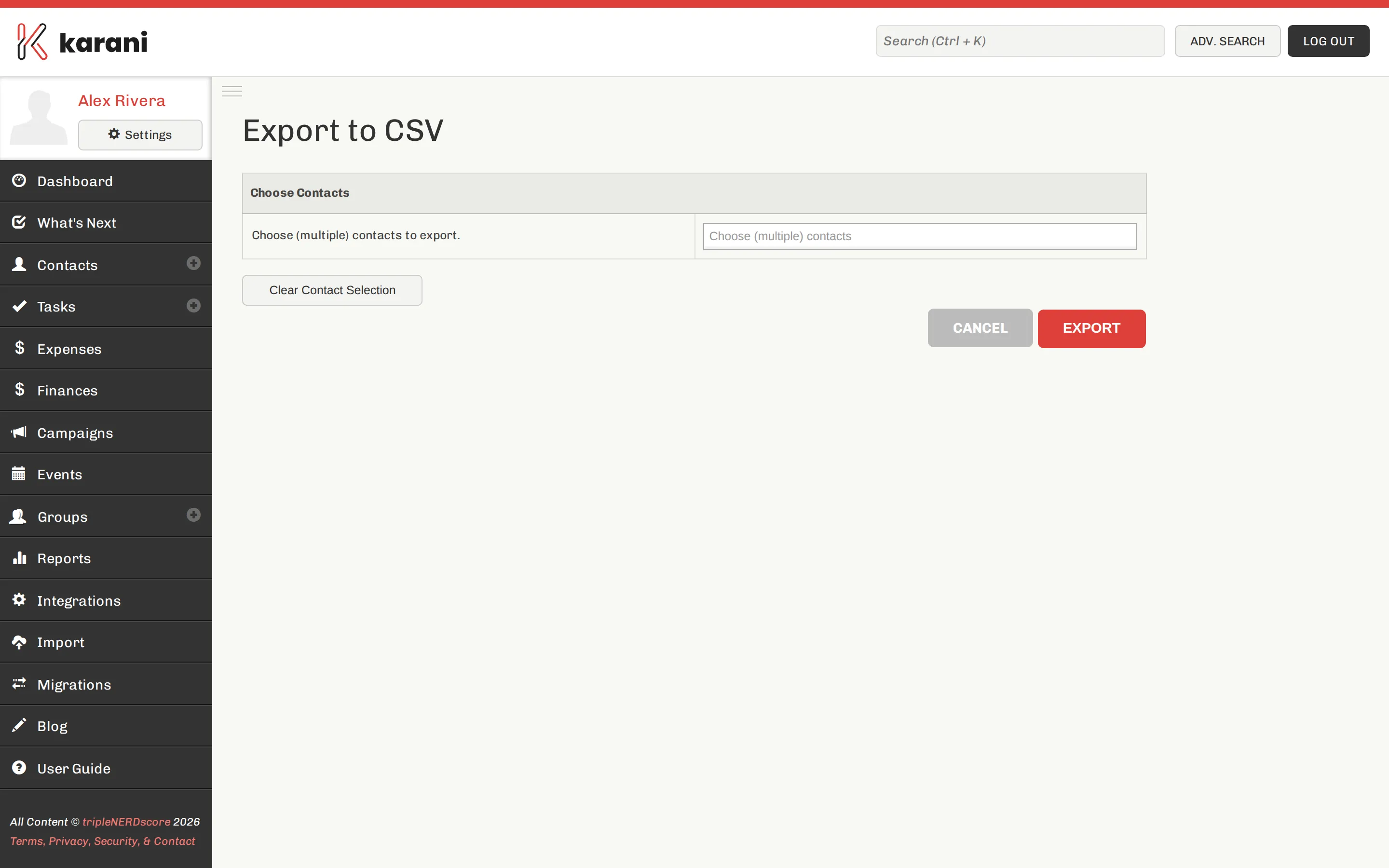
Section titled “Per-report exports”Most reports export just what’s on screen, which is usually what you want:
| From | Gives you |
|---|---|
| Contacts list → Export CSV | The current list, filters applied |
| The Grid → Export | Your chosen columns, grouping, and filters |
| Gifts Report → Export | Filtered gifts with amounts |
| Fiscal Year Giving → Export | The per-donor, per-month grid |
| Expenses → Export | Filtered expenses |
| Group → Export | Emails, or mail-merge addresses |
| Event → Export CSV | Registrations |
For a spreadsheet with particular columns, The Grid gives you the most control.
Opening a CSV
Section titled “Opening a CSV”CSVs open in Excel, Numbers, Google Sheets, or LibreOffice.
Account resets
Section titled “Account resets”The same Settings → Data page has reset options — reset contacts, reset gifts, reset the whole account.
They’re there for a real case: an account you set up as a trial with test data and now want to use properly.
Getting data out programmatically
Section titled “Getting data out programmatically”For an ongoing feed rather than a one-off file, see the API and webhooks.