

Member details
Click any name on the team dashboard, or View Details in the team panel.
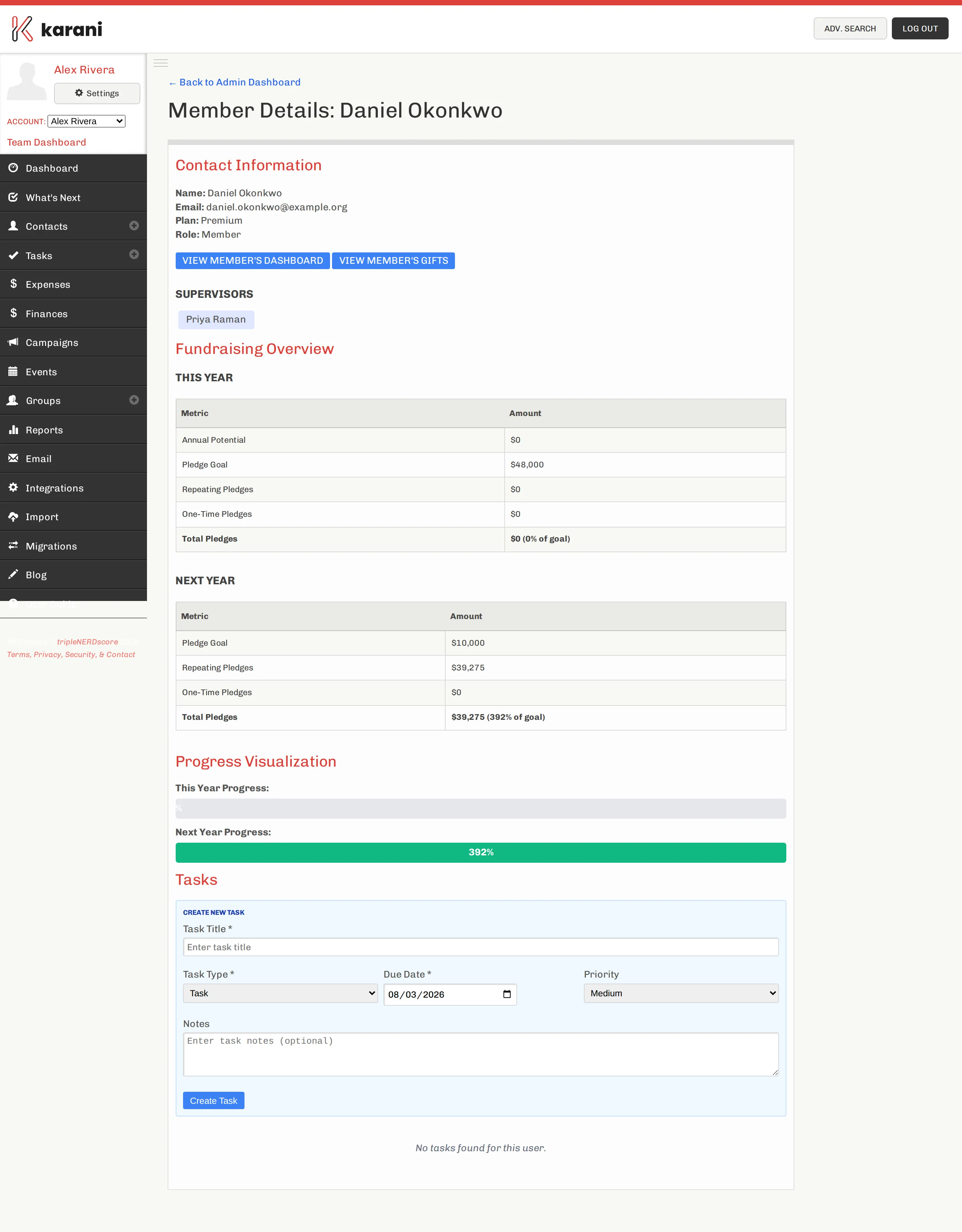
What’s on the page
Section titled “What’s on the page”Contact information — name, email, and their role in the team.
Team information — their supervisors, and the team admin.
Fundraising overview — this year’s and next year’s pledges, total pledges, and their progress toward each. The same numbers the person sees on their own Finances page, so you’re both looking at the same thing.
Progress visualisation — the same progress bars as the roster, with left to raise expressed as a monthly figure.
Creating a task for someone
Section titled “Creating a task for someone”The member page has a Create New Task form. Set:
- Task title
- Task type — Call, Email, Meeting, Ask, Thank You, Mail, Text, Facebook, or Task
- Due date
- Priority — Highest through Lowest
- Notes
The task lands in that person’s Tasks page like any other.
Their gifts
Section titled “Their gifts”View Details → gifts, or the member gifts link, lists every gift in that person’s account.
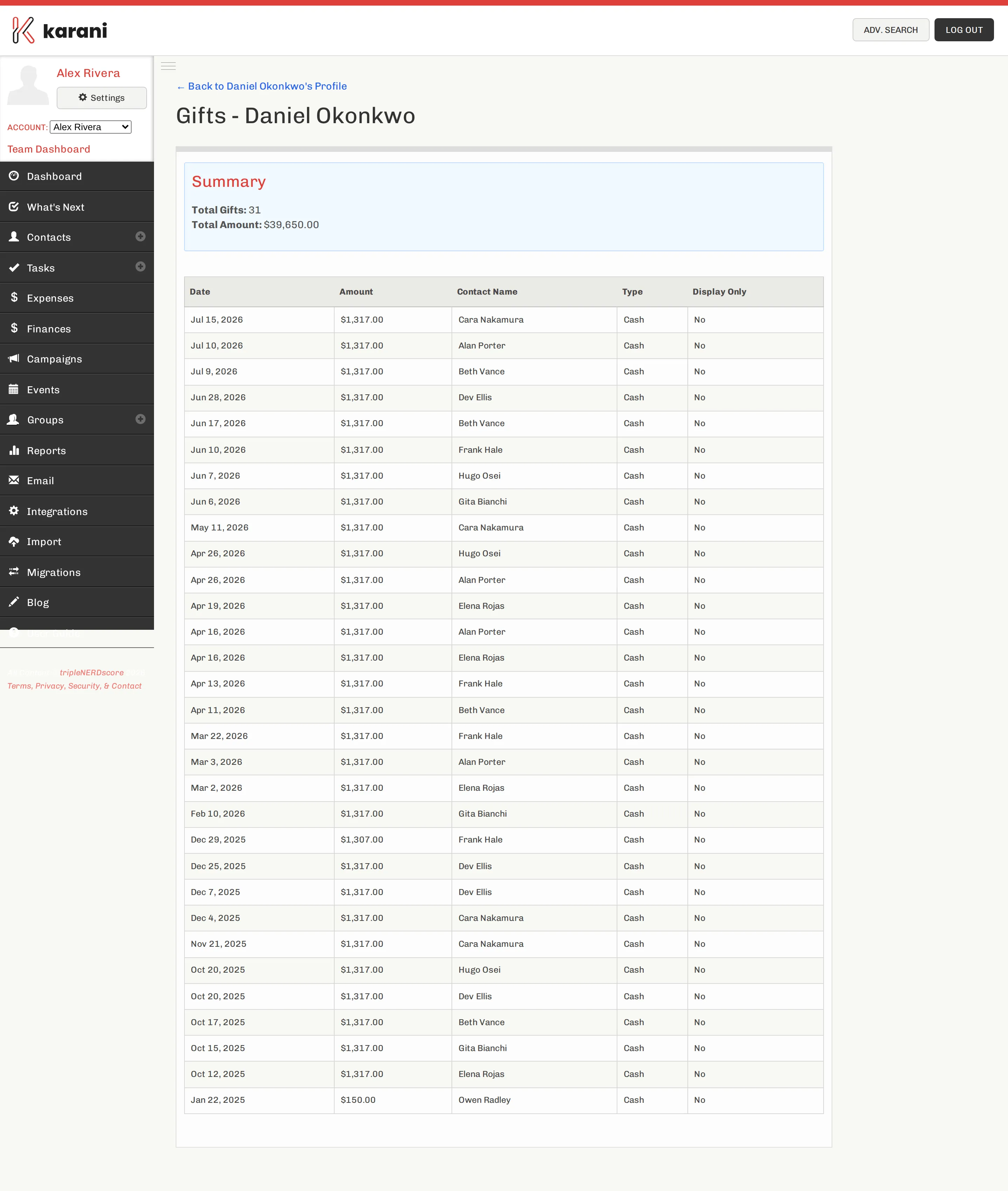
Anonymous gifts are marked as Given Anonymously, and display-only gifts as Display Only — both so the totals make sense.
What a member sees
Section titled “What a member sees”A member opening their team view sees their own information, their role, their supervisors, and the team admin — not the roster.
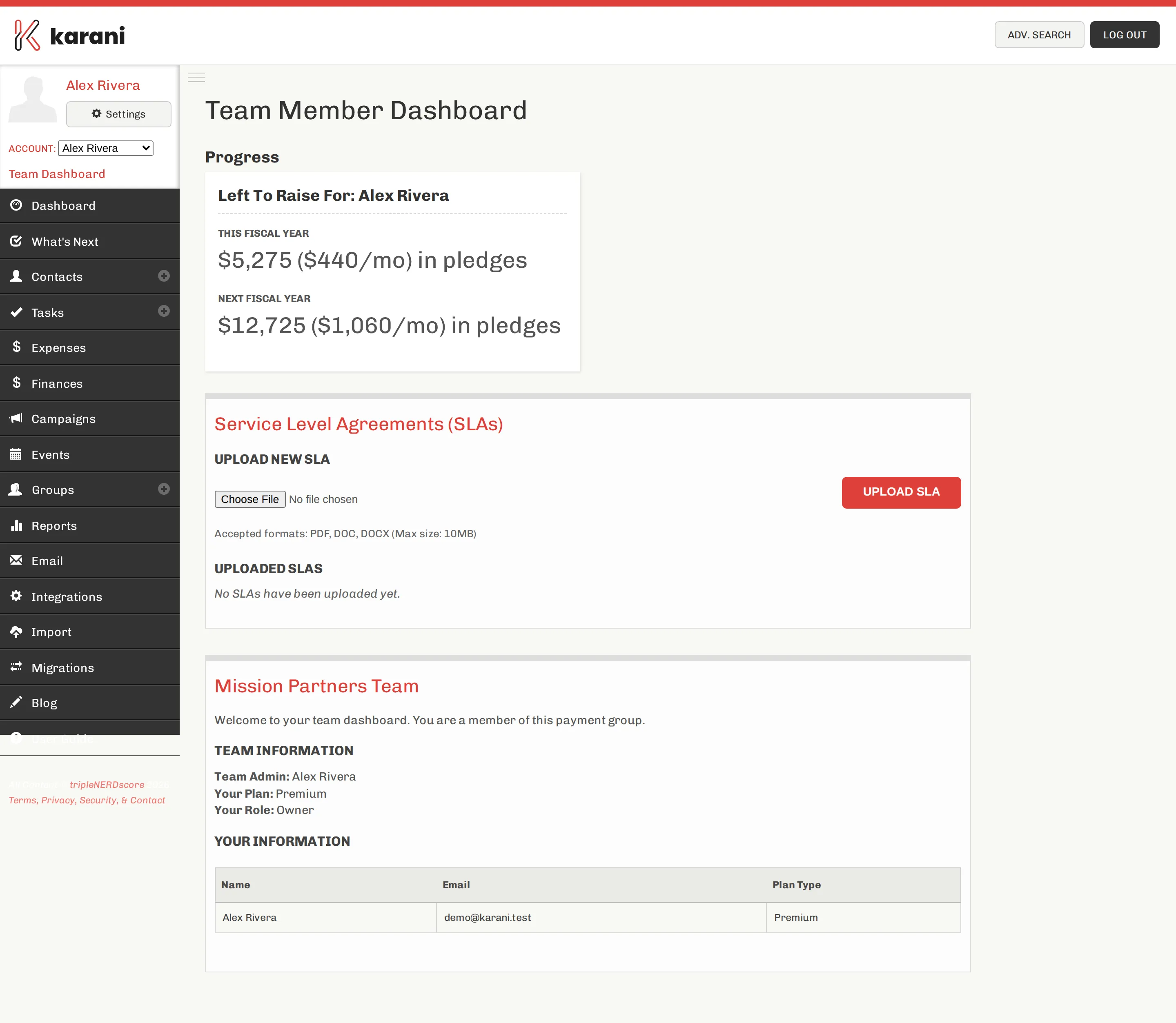
A supervisor opening the same page sees Your Supervised Members — the people assigned to them.