

Editing a contact
-
Open the contact, either from the contacts list or by typing their name into the search box at the top of any page.
-
Click the red Edit button in the top right of their profile.
-
Change what you need to change.
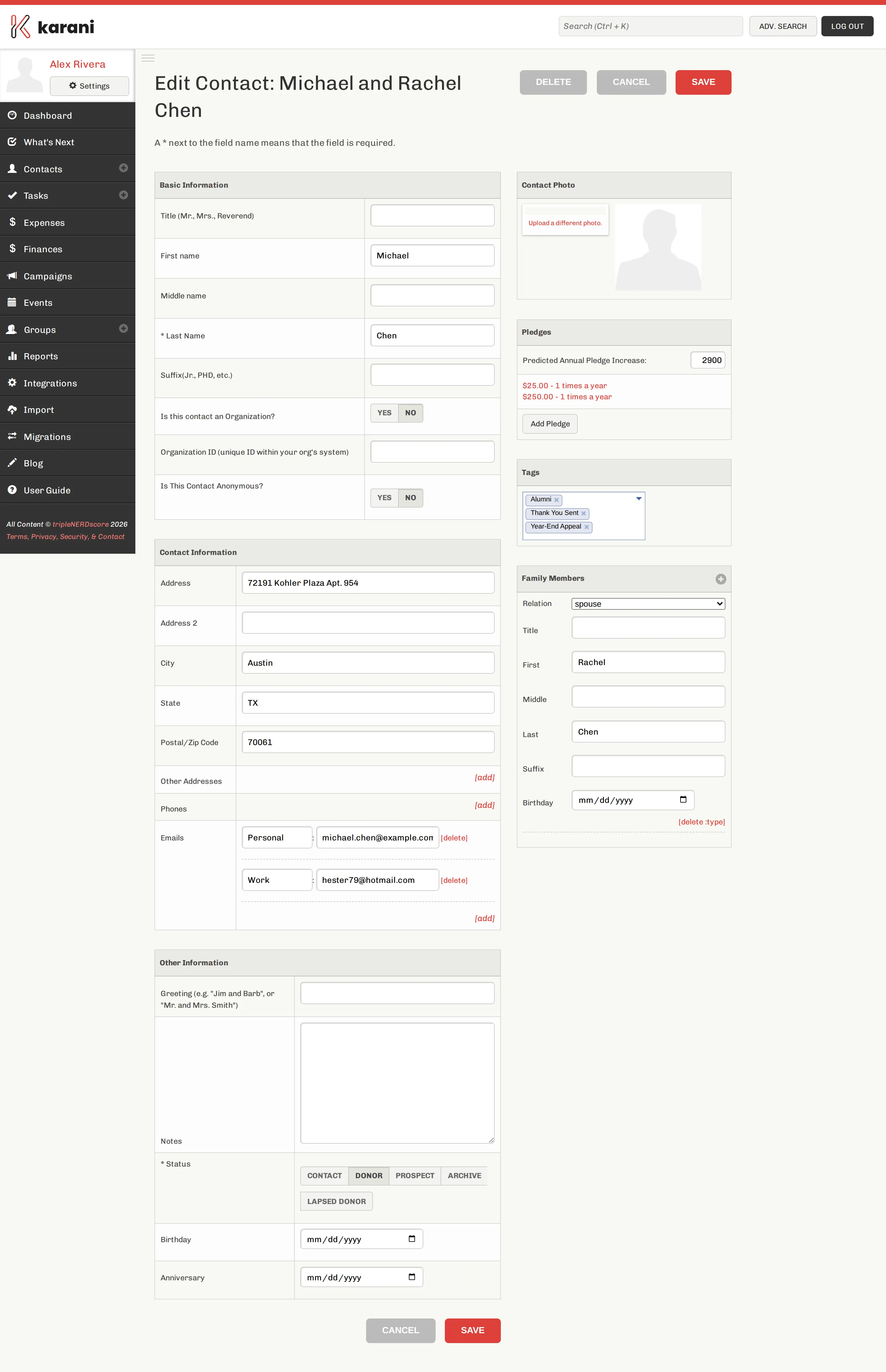
The edit form is the add form, pre-filled. Every field behaves the same way. -
Click Save Contact.
Every field is documented in Adding a contact — the two forms are identical.
Editing things that aren’t on this form
Section titled “Editing things that aren’t on this form”Some of what looks like part of a contact lives elsewhere, and is edited directly on the profile rather than through this form:
| To change… | Do it here |
|---|---|
| Group membership | The Groups panel on the profile — tick and untick |
| Tags | The Tags panel on the profile |
| Pledges | The Pledges panel, or Adding a pledge |
| Gifts | Click the gift in the Gifts panel |
| Tasks and interactions | The Tasks and Interactions list |
Seeing what changed
Section titled “Seeing what changed”Karani keeps a revision history for every contact. On the profile, scroll to Revisions and click Show.
You’ll see which fields changed, what they changed from and to, when, and which user made the change. On a shared account this is the fastest way to answer “who edited this, and why is the address different?”
Editing many contacts at once
Section titled “Editing many contacts at once”For changes that apply to a lot of people, don’t edit them one at a time:
- Status, tags, or group membership — tick contacts in the contacts list and use With Selected….
- Anything else, in bulk — re-run a CSV import. Rows matched on organisation ID update the existing contact rather than creating a new one.