

Mailing labels & mail merge
Karani doesn’t print labels itself. It gives you a correctly structured CSV, and your word processor does the printing.
Downloading the addresses
Section titled “Downloading the addresses”-
Open the Groups page and click the group you want to mail.
-
Click Export in the top left of the group page.
-
Choose Download Addresses for Mail Merge.
A .CSV file downloads to your computer with one row per contact, including
the name, greeting, and primary address.
Printing labels from the CSV
Section titled “Printing labels from the CSV”The file is a standard mail-merge source. Follow Microsoft’s guide for creating and printing mailing labels from an address list, or the equivalent in Pages, Google Docs, or LibreOffice.
How names are chosen
Section titled “How names are chosen”The name on each row is worked out in this order:
- The contact’s Greeting, if set — “Jim and Barb”, “Mr. and Mrs. Smith”.
- Otherwise, the contact’s name plus any family member marked include in mail merges.
- Otherwise, just the contact’s name.
Which address is used
Section titled “Which address is used”The primary address — the one in the main Address / City / State / Postal Code fields, not one of the additional addresses. See Emails, phones & addresses.
Contacts with no address
Section titled “Contacts with no address”Contacts without a primary address are exported with the address columns empty, rather than being dropped. Sort by the address column in your spreadsheet to find them, and either fill in the address or exclude them from the mailing.
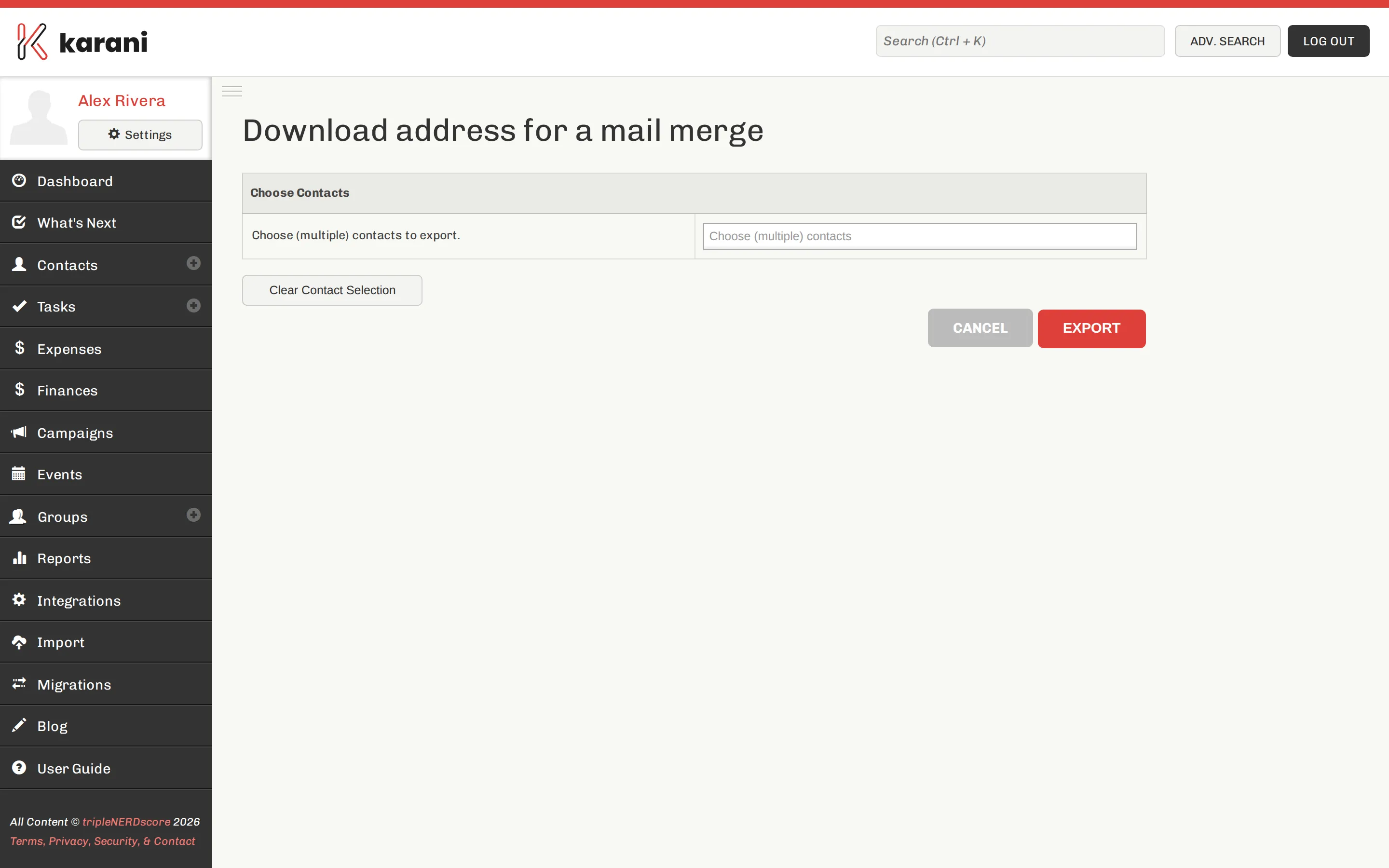
Mail merge without a group
Section titled “Mail merge without a group”If you want an arbitrary set of people rather than a whole group, go to Contacts → Mail merge and select contacts there. Same output format.
Logging the mailing
Section titled “Logging the mailing”Once you’ve sent it, record it — otherwise those contacts will start showing up in Out of Touch Donors despite hearing from you. Add an interaction of type Mail to the whole group at once with Bulk tasks & interactions.
Sending paper mail without printing it
Section titled “Sending paper mail without printing it”PrayerLetters.com prints and posts for you from a synced Karani group.