

Adding a task
A task is something you intend to do. Karani reminds you about it, and when you tick it off it becomes part of the contact’s permanent history.
The fast way
Section titled “The fast way”If you’re already looking at a contact, use the box at the top of their Tasks and Interactions panel labelled Type to create a task/interaction. Type what you want to do, and Karani offers to make it a task. Set a date and you’re done.
This is the route to build a habit around — it takes about ten seconds.
The full form
Section titled “The full form”Click the + next to Tasks in the left navigation.
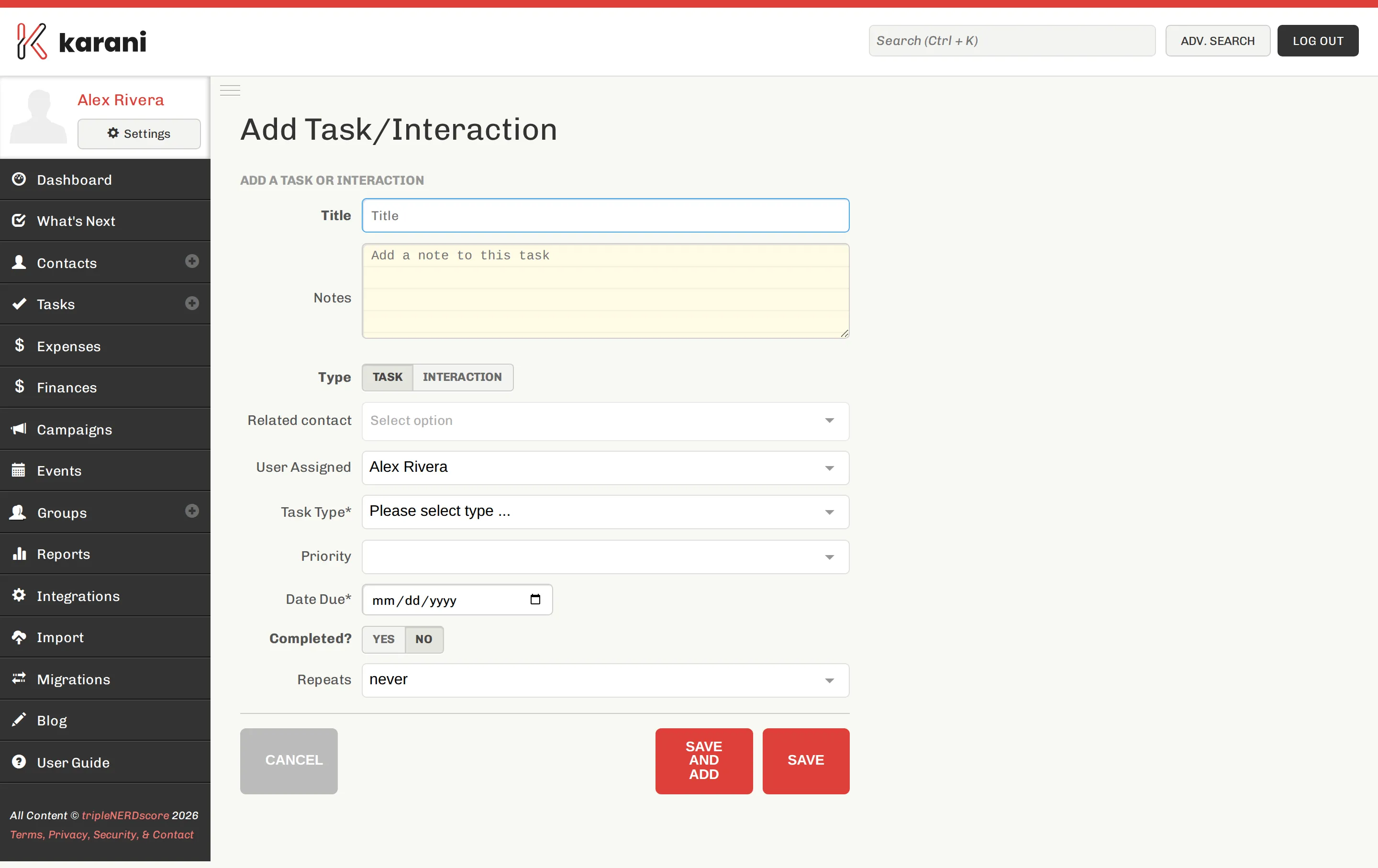
-
Contact — who the task relates to. Start typing a name and pick from the list.
-
Title — what you’re going to do. Write it as an action: “Call about the spring appeal”, not “Spring appeal”.
-
Type — Task, Note, Ask, Thank You, Email, Facebook, Mail, Text, Call, or Meeting. See the type list.
-
Due date — when you intend to do it.
-
Priority — Highest through Lowest. Affects ordering on the Tasks page.
-
Notes — anything you’ll want in front of you when you actually do it. What you’re asking for, what they said last time, the name of their dog.
-
Save.
Completing a task
Section titled “Completing a task”Click the check next to the task — on the contact profile, on the Tasks page, or on your dashboard.
Completing a task converts it into an interaction dated today, with the same title, type, and notes. It shows up in the contact’s Communication Timeline and counts toward the “last interaction” date that Out of Touch Donors uses.
Tasks for many contacts at once
Section titled “Tasks for many contacts at once”Sending the same appeal letter to forty people is one action, not forty. Use Bulk tasks & interactions — you can target a group or a hand-picked set of contacts.
Tasks that repeat
Section titled “Tasks that repeat”For anything on a schedule — a quarterly check-in, a monthly newsletter — set it up once as a repeating task rather than re-creating it each time.