

Dashboard overview
The dashboard is your home screen — what’s due, where you stand, and what to do next. It’s also the one screen in Karani you can rearrange to suit how you actually work.
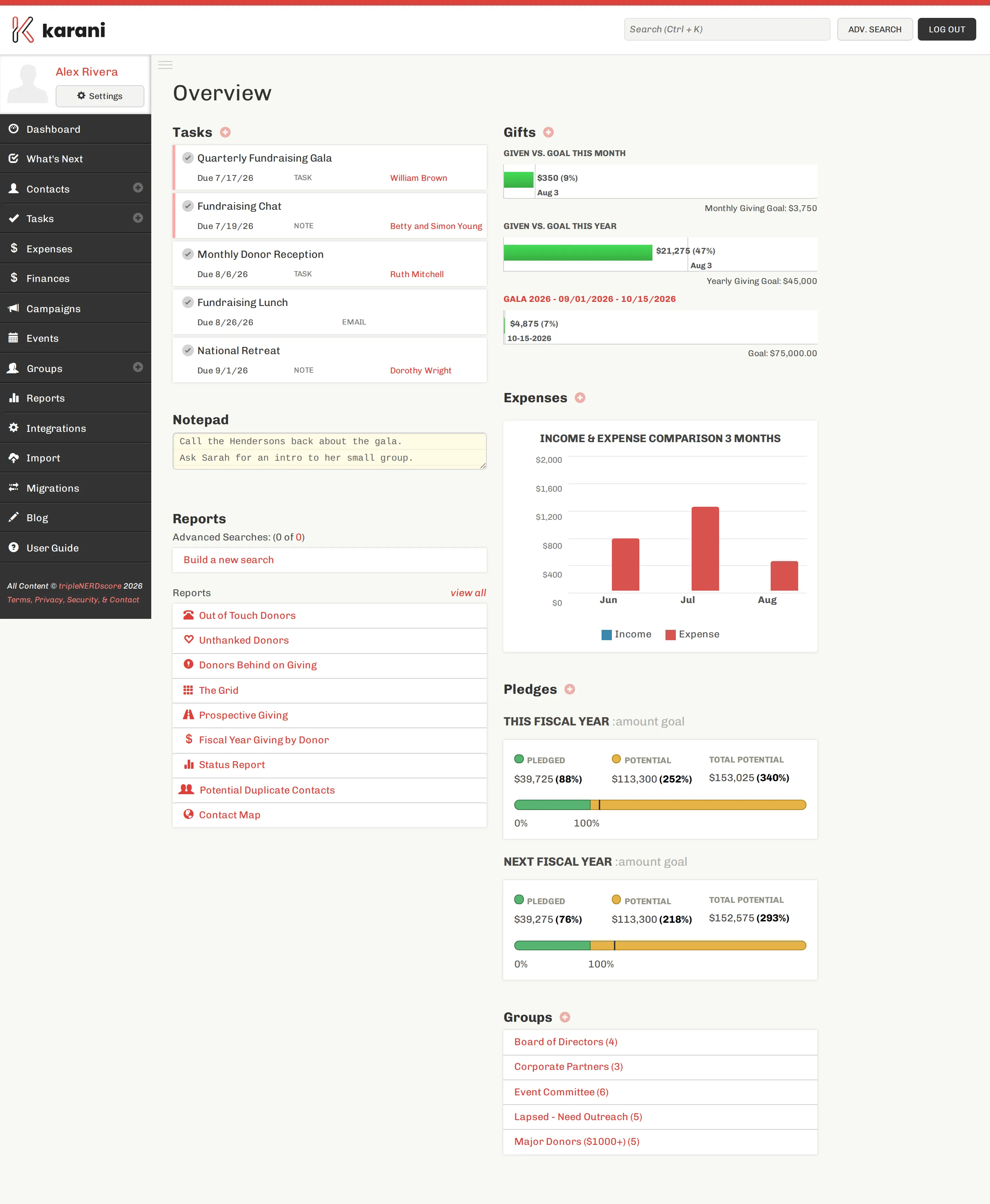
Two columns of widgets
Section titled “Two columns of widgets”Everything on the dashboard is a widget — a self-contained block. Nine are on out of the box; another eleven are available and off until you add them.
Widgets are cheap: a hidden one isn’t fetched at all, so a trimmed dashboard genuinely loads faster rather than just hiding things.
See the full widget reference.
Making it yours
Section titled “Making it yours”The Customize button beside the page heading opens the customizer. Drag widgets between columns, hide the ones you don’t use, add the ones you do.

See Customizing your dashboard.
How Karani decides what you see
Section titled “How Karani decides what you see”If you’ve never customized anything, you get the standard set. If you’re on a team, it’s more layered than that — Karani falls back in four steps:
- Your own saved layout
- A layout a team leader built for you
- Your team’s or organisation’s default
- The standard set
Your own choice always wins. See Layouts & inheritance.
Widgets that only appear sometimes
Section titled “Widgets that only appear sometimes”A few widgets are hidden when they’d have nothing to say:
| Widget | Appears when |
|---|---|
| Announcements | You belong to an organisation |
| What’s New | You belong to an organisation |
| Giving by Fund | Your giving uses more than one designation |
| Expenses | Accounting is enabled — see Expenses |
Unavailable widgets are hidden from the customizer too, so you won’t add something that then doesn’t show up.
Per account
Section titled “Per account”Dashboard layouts are saved per account. If you have more than one account, each gets its own — which is usually what you want, since a scholarship fund and your salary support call for different things on screen.